
How to Convert JSON to CSV for Excel (With Example)
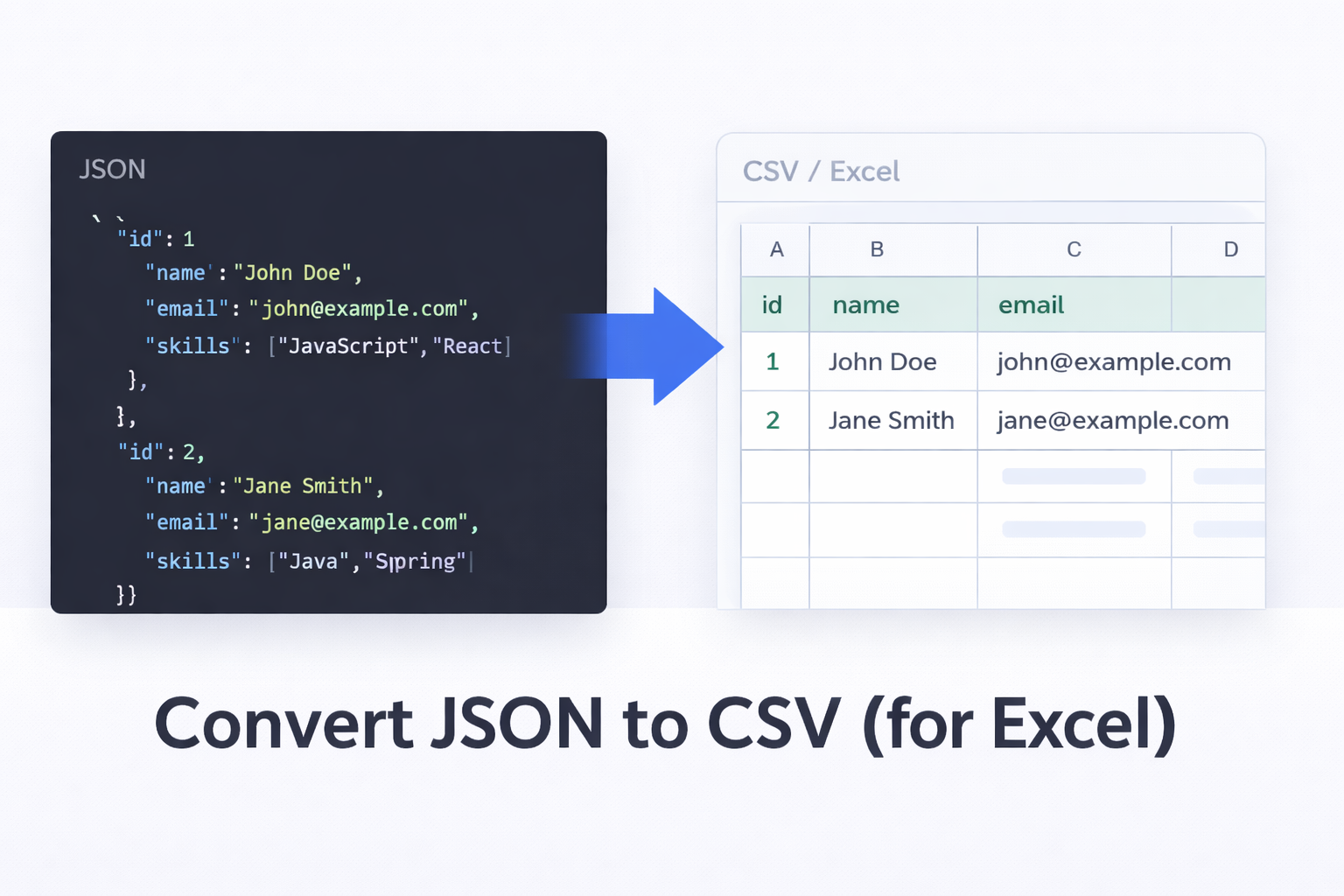
APIs and modern applications usually return data in JSON format, but tools like Microsoft Excel and Google Sheets work much better with CSV files.
If you’ve ever tried opening raw JSON inside Excel…
you already know what happens.
You get one giant unreadable cell 😅
This guide shows exactly how to convert JSON into a clean spreadsheet — with a working example.
What is JSON and CSV?
JSON (JavaScript Object Notation)
JSON is a structured data format used by APIs and web applications to exchange data.
Developers love it because:
It supports nested data
It’s readable in code
Works perfectly for web apps
But spreadsheets don’t understand nested structures.
CSV (Comma-Separated Values)
CSV is a flat tabular format supported by:
Microsoft Excel
Google Sheets
Airtable
Data analysis tools
Each line = a row
Each comma = a column
Which makes it perfect for spreadsheets.
Example JSON Data
Here is a simple API-style JSON response:
[
  {
    "id": 1,
    "name": "John Doe",
    "email": "john@example.com",
    "skills": ["JavaScript","React"]
  },
  {
    "id": 2,
    "name": "Jane Smith",
    "email": "jane@example.com",
    "skills": ["Java","Spring"]
  }
]
Try opening that in Excel and you’ll see the problem immediately.
Converted CSV Output
After conversion, the same data becomes:
id,name,email,skills
1,John Doe,john@example.com,"JavaScript|React"
2,Jane Smith,jane@example.com,"Java|Spring"
Now Excel instantly understands it.
Columns are separated
Rows are clean
Data is usable
Why Excel Cannot Read JSON Properly
JSON supports:
nested objects
arrays
hierarchical structures
Excel only supports:
rows
columns
flat tables
So before importing into Excel, JSON must be flattened → that’s exactly what converting to CSV does.
Ways to Convert JSON to CSV
There are three main approaches:
1) Writing a Script (Flexible but Time-Consuming)
You can write a script in Python or JavaScript.
Example (JavaScript / Node.js):
const fs = require("fs");

const data = JSON.parse(fs.readFileSync("data.json"));

let csv = "id,name,email,skills\n";

data.forEach(user => {
  csv += `\({user.id},\){user.name},\({user.email},"\){user.skills.join("|")}"\n`;
});

fs.writeFileSync("output.csv", csv);
Best for:
automation
pipelines
developers
Not ideal if you just need a quick conversion.
2) Excel Power Query (Powerful but Complex)
Excel actually can import JSON using Power Query:
Excel → Data → Get Data → From File → From JSON
The issue:
You must manually expand nested arrays and objects.
Good for analysts.
Confusing for most users.
3) Using an Online Tool (Fastest & Easiest)
The simplest method is a browser-based converter.
You can use this free tool:
https://alljsontools.com/json-to-csv?ref=hashnode
Steps:
Paste JSON
Click Convert
Download CSV
Open in Excel
Takes about 5 seconds.
Why Client-Side Tools Matter
Some datasets contain:
customer lists
API exports
internal analytics
A client-side converter processes data inside your browser — not on a server.
That means:
no uploads
no storage
better privacy
safer for sensitive data
When You’ll Need This
This conversion is commonly required when:
Exporting API data to Excel
Preparing CRM imports
Analyzing logs
Creating reports
Handling webhook data
Working with no-code tools (Zapier, Make, Airtable)
Basically:
Developers produce JSON. Businesses use spreadsheets.
You’re bridging the gap.
Final Thoughts
JSON is perfect for applications.
CSV is perfect for humans.
Whenever you need to analyze, share, or report data in Excel — converting JSON to CSV is the simplest step that makes the data usable.
Instead of manually cleaning raw API responses, a quick conversion turns unreadable code into an organized spreadsheet in seconds.
(Optional Tip)
If you frequently work with APIs, bookmark a converter.
You’ll end up using it far more often than expected.